Microsoft Graph SharePoint
Which SharePoint Connector Should I Use?
The connector you use depends on whether your SharePoint environment is hosted on-premises or in the cloud.
|
Environment |
Integration Connector |
Recommended Authentication |
|---|---|---|
|
SharePoint Online (Cloud) |
Microsoft Graph SharePoint Connector |
Microsoft Graph OAuth Connector |
|
SharePoint On-Premises |
SharePoint REST Connector |
SharePoint REST Azure AD OAuth Connector |
SharePoint Online (Cloud)
Use the Microsoft Graph SharePoint Connector. Microsoft Graph is the recommended connector for all SharePoint Online environments. OAuth is the preferred authentication method where possible.
Caution: It is recommended that MS Graph be used to Authenticate Microsoft Office products like SharePoint. If users are encountering job fails you should check your SharePoint permissions as the authorised account may not be limiting what 3Sixty can do.
SharePoint On-Premises
Use the SharePoint REST Connector. OAuth is recommended where possible. Note that the SharePoint REST connector is maintained primarily for legacy and on-premises environments — if you are not on-premises, use Microsoft Graph instead.
Authentication Connection
This connector requires a standard Microsoft Graph Authentication Connection.
Caution: Its recommended that OAuth be used for Migration only. And Client / Secret Auth be used for Content Service
MS Graph OAuth usually requires human interaction to refresh the token and isn't suitable for content services, because content services is usually meant to act as a background process. TCS with SharePoint for example. You don't want your entire system to stop working because you need to manually re-authenticate the content service connection that handles all the downloads/deletes.
Caution: If users are encountering job fails they should check their SharePoint permissions as the authorised account may not be limiting what 3Sixty can do.
The application will require the following permissions:
-
Repository: Sites.Read.All
-
Output: Sites.Manage.All
Discovery Connection
Discovery makes mapping to and from your sources easier for data migration and ensures the data gets connected to the right fields. Discovery requires an Authentication Connection

-
Select Schema Instance from the Navigation Menu or the Dashboard under Discovery
-
Select the new connection button
-
Enter a name for your Discovery Connection
-
Select your connection type from the drop down
-
Click save on the Create Connection form
-
In the edit connection page fill out any addition fields and click save
Guide to Discovery Connections
Configuration
-
Tenant Name: The name of the tenant. All O365 SharePoint instances use the structure [tenant].sharepoint.com. We use this to construct urls and gather siteIds.
-
Sites to Crawl: The base sites to crawl. Root will crawl your Team site.
-
Crawl Subsites: If the site has any subsites, crawl them as well. For example, if you leave the list above as root, but there is a subsite ([tenant].sharepoint.com/mySite), it will not be crawled unless this box is checked.
Integration Connector
Important: RUNNING ERRORS
As of the 3.1.1 release, MSGraph connectors cannot rerun errored documents. We are aware of the issue, and it will be addressed in the next release.
Important: WARNING
The Microsoft Graph APIs throttle connections that make what it considers excessive api calls. They have not shared these metrics, and they are determined dynamically based on previous usage and presumably account type. See this link for more details
Due to how SharePoint handles metadata, the document and its metadata will be uploaded separately.
Documents with Metadata: This process is done by batching the document with its metadata, with the metadata write contingent on the success of the upload. In this case a document is complete if both the metadata and document successfully upload. If either fails due to a 429 (throttling) response, the missing piece will be attempted a number of times after waiting.
Documents without Metadata: If a document has no metadata (no mappings), a non- batch upload will be performed. The same retry logic will take place but only for the file content.
Recommended Settings to avoid Throttling: Details Tab Advanced Options Max Queue Size = 500 Output Threads = 5 Output Specification Number of retries = 10
Job Configuration
A 3Sixty Job is the process of moving or syncing content (including versions, ACL's, metadata) from one CMS (content management system) to another. Add tasks to your job to have better control over how your data gets migrated. Click here for details on how to set up an integration job.
-
Select List Jobs under Jobs on the navigation menu or the dashboard
-
Click the create job button
-
In the New Job form
-
Name the job
-
Select Simple Migration from the job type drop down
-
Select the Repository Connection
-
Select the Output connection
-
Select your Content Service Connection
(Only required if you will be using Federation)
-
Click Save to open the Edit Job page
-
Fill in the configurations for the Repo and Output Configuration tabs
-
-
Click save to save your new integration job
-
Select Run and Monitor Jobs under Integration in the navigation menu
-
Click the play button next to the job you want to run
-
Click the refresh button to view your completed job status
(Larger jobs will take longer to run)
Configuration
-
Site List: Comma delimited list of tenants sites to crawl for content types. Use 'root' for main site.
-
Library List: Libraries to Crawl. List names do not require their parent sites (ex. 'Documents' not 'sites/Test/Documents')
-
Crawl Subsites: If the site has any subsites, crawl them as well. For example, if you leave the list above as root, but there is a subsite ([tenant].sharepoint.com/mySite), it will not be crawled unless this box is checked.
-
Process Folders: Process folders as well as documents.
-
Get Versions: Retrieve document versions.
-
When retrieving versions, calculated fields for version information will not work if there are no additional versions of a document. If you wish to map the version label of a document that may or may not have more than one version, use the Field Document._UIVersionString in the mapping tab.
-
|
Field |
Description |
|---|---|
|
Site List |
Comma delimited list of tenants sites to crawl for content types. Use 'root' for main site. |
|
Library List |
Libraries to Crawl. List names do not require their parent sites (ex. 'Documents' not 'sites/Test/Documents') |
|
Crawl Subsites |
If the site has any subsites, crawl them as well. For example, if you leave the list above as root, but there is a subsite ([tenant].sharepoint.com/mySite), it will not be crawled unless this box is checked. |
|
Process Folders |
Process folders as well as documents. |
|
Get Versions |
Retrieve document versions.
|
Caution: CASE SENSITIVITY
Site and Library names are case-sensitive. If the case is wrong, the job will complete successfully, but no documents will be picked up
Output Specifications
When using this connector as a file destination, filling out the following fields will tell 3Sixty where you want the files integrated to.
Configuration
-
Tenant Name: The name of the tenant. All O365 SharePoint instances use the structure [tenant].sharepoint.com. We use this to construct urls and gather site IDs.
-
Output Folder Path: The folder where the files will be stored. Do not include the library root folder in this path. If left blank, documents will be written to the library root (ex. Documents will write directly to the Shared Documents folder)
-
Output Site: The tenant (sites/mySite) or subsite (/mySite) where the documents will be written. Defaults to root
-
Output List: The name of the library within the site. Defaults to Documents
-
Check documents for a value to override destination site: Each document will have its metadata checked for a new subsite or tenant site.
-
Field to check for site override value: If checking for site overrides, this field will be checked for the new site path. If present, the document will be uploaded to that site. The default is 'site'. If this value is set and no list override is present, the files will upload to 'Documents' on the new site.
-
Check documents for a value to override destination list: Each document will have its metadata checked for a new list name.
-
Field to check for list override value: If checking for list overrides, this field will be checked for the new list name. If present, the document will be uploaded to that list. The default is 'list'. This can be combined with a site override.
-
Retry Attempts: The number of times to try completing a document upload before failing.
-
Roll Back files: There are instances where a document may be uploaded but its metadata will exceed the allowed number of upload attempts. If this flag is checked, that document will be deleted (and will be noted in the Removed column in the job status screen).
-
Set Permissions: Set ACLs for documents when available. Expected format is "(email)=writer" or "(email)=reader"
|
Field |
Description |
|---|---|
|
Tenant Name |
The name of the tenant. All O365 SharePoint instances use the structure [tenant].sharepoint.com. We use this to construct urls and gather site IDs. |
|
Output Folder Path |
The folder where the files will be stored. Do not include the library root folder in this path. If left blank, documents will be written to the library root (ex. Documents will write directly to the Shared Documents folder) |
|
Output Site |
The tenant (sites/mySite) or subsite (/mySite) where the documents will be written. Defaults to root. |
|
Output List |
The name of the library within the site. Defaults to Documents |
|
Check documents for a value to override destination site |
Each document will have its metadata checked for a new subsite or tenant site. |
|
Field to check for site override value |
If checking for site overrides, this field will be checked for the new site path. If present, the document will be uploaded to that site. The default is 'site'. If this value is set and no list override is present, the files will upload to 'Documents' on the new site. |
|
Check documents for a value to override destination list |
Each document will have its metadata checked for a new list name. |
|
Field to check for list override value |
If checking for list overrides, this field will be checked for the new list name. If present, the document will be uploaded to that list. The default is 'list'. This can be combined with a site override. |
|
Retry Attempts |
The number of times to try completing a document upload before failing. |
|
Roll Back files |
There are instances where a document may be uploaded but its metadata will exceed the allowed number of upload attempts. If this flag is checked, that document will be deleted (and will be noted in the Removed column in the job status screen). |
|
Set Permissions |
Set ACLs for documents when available. Expected format is "(email)=writer" or "(email)=reader" |
Mapping
3Sixty Mapping gives you the ability to map your content types and metadata from one system to another.
There are two places in 3Sixty where you can set up mappings:
-
At the top of the mapping tab you can select from saved mappings
-
Creating a unique mapping based on your connectors.
If you want to map the document version comments, please add below mapping (mapping is shown from graph share point to CMIS connector).

Tasks
Job tasks also known as processors provide a processing pipeline for documents and metadata. Post processors can also be added as a task to run after the files are processed.
Click here for a list of all the tasks you can add to your integration job.
-
Click on the task tab in your integration job.
-
Find the task you want to create in the drop down. Tasks are grouped by type. You can also search for the task by name.
-
Select the create task button
-
Fill out the configuration fields. Some tasks do not require configuration.
-
Click Done to save the task to your job.
Content Service Connection
This connection will provide a full ECM API for interacting with files, folders, metadata, versions, and renditions.
Content Service Connections Overview
-
Select Content Service under Connections in the navigation menu
-
Click the New Connection button
-
Fill in the following configuration fields.
Basic Configuration
|
Field |
Description |
|---|---|
|
Connector ID |
Give your connector a unique name |
|
Description |
Provide a description for this connection |
|
Type |
Select the Filesystem Content Service Connector |
|
Keep Connection Alive |
Keep this connection active |
|
Keep alive in Milliseconds (300000 is 5 minutes) |
How long until connection expires if unused |
|
Connection URL |
The web address for your connection |
|
Security Mode |
None needed for this connection |
|
Mapping Type |
Choose single map or group mapping if you are using mapping for jobs |
Connection Configuration
-
Tenant Name: The name of the tenant. All O365 SharePoint instances use the structure [tenant].sharepoint.com. We use this to construct urls and gather site IDs.
-
Site Name: The path to the target site as it would appear in the SharePoint url.
-
List Name: The name of the library, as seen on the sites' sidebar.
-
SiteId: After configuring the connection the first time this can be populated using the REST APIs. See the Root Folder example below.
|
Field |
Description |
|---|---|
|
Site Path |
The path to the target site as it would appear in the SharePoint url. |
|
Library Name |
The name of the library, as seen on the sites' sidebar. |
|
Site Id |
After configuring the connection the first time this can be populated using the REST APIs. See the Root Folder example below. |
|
Tenant Name |
The name of the tenant. All O365 SharePoint instances use the structure [tenant].sharepoint.com. We use this to construct urls and gather site IDs. |
Note: Document and folder ids will look like this.
01WNAC6ZYYYWDZOWH2DFH3LRHT7MWF5L2R
As SharePoint is actually backed by OneDrive, all the ids are actually OneDrive Ids as well.
-
checkIn
-
checkOut
-
createFile
-
createFolder
-
deleteACL
-
deleteFolder
-
deleteObjectByID
-
findTypeDefinition
-
getACLs
-
getFileContent
-
getObjectProperties
-
getTypes
-
listFolderItems
-
listVersions
-
lockDocument
-
setACLs
-
unlockDocument
-
updateFile
-
updateProperties
Routing Document Examples
Following are simple examples of routing documents of different file types to different locations within your tenant.
These examples assume you are using the default override field names.
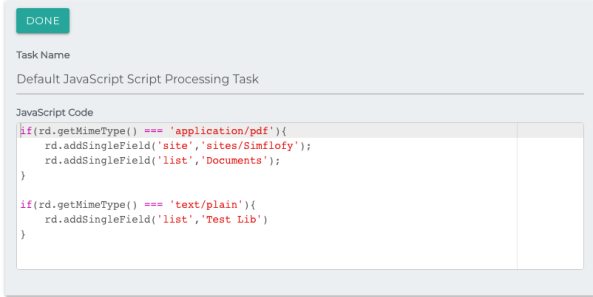
Assume the connector ID in these examples will be graph
GET /3sixty-admin/api/repo/graph/rootfolderid
You should receive the following:
{
  "success": true,
  "results": {
    "folderPath": "/Shared Documents",
    "additionalInfo": {
      "siteId": "simflofy.sharepoint.com,bfc93f6e-6eed-4f27-8aa8-72509a410d3b,a357fae5-24f9-464c-8087-cc1594eed1d4"
    },
    "folderName": "Shared Documents",
    "folderId": "b!bj_Jv-1uJ0-KqHJQmkENO-X6V6P5JExGgIfMFZTu0dSZbZes5ncJT7CQyPGcAqVS"
  }
}
It should be noted that this is not the common form a folder Id will take. MSGraph treats the root folder of each Library as a drive, so this is actually a Drive ID.
POST /api/repo/graph/file?folderId=01WNAC6Z4BAYBXXIMILVBLXKCZ6K3VVNHJ&fileName=newfile.txt&type=MetaDocument
Note: The file content needs to be set as part of a multi-part form (EDITING NOTE link testing with postman here)
Note: The folderId can be a path off of the root library. Such as /test.
{
  "success": true,
  "results": {
    "id": "01WNAC6Z32P4QVKHLA7ZC2SZH7IYTSDON7"
  }
}GET api/repo/graph/idbypath?fileName=newfile.txt&folderPath=/tester
{
  "success": true,
  "results": "01WNAC6Z32P4QVKHLA7ZC2SZH7IYTSDON7"
}PUT /api/repo/graph/updateContent?fileId=01WNAC6Z32P4QVKHLA7ZC2SZH7IYTSDON7
Note: Set the new content as the request body
{
  "success": true,
  "results": {
    "id": "01WNAC6Z32P4QVKHLA7ZC2SZH7IYTSDON7"
  }
}GET /api/repo/graph/properties?id=01WNAC6Z32P4QVKHLA7ZC2SZH7IYTSDON7
{
  "success": true,
  "results": {
    "Modified": {
      "queryName": "Modified",
      "value": "2021-09-14T17:29:46Z",
      "displayName": "Modified"
    },
    "LinkFilename": {
      "queryName": "LinkFilename",
      "value": "newfile.txt",
      "displayName": "LinkFilename"
    },
    "ContentType": {
      "queryName": "ContentType",
      "value": "MetaDocument",
      "displayName": "ContentType"
    },
    ...
}PUT /api/repo/graph/updateProperties?fileId=01WNAC6ZYYYWDZOWH2DFH3LRHT7MWF5L2R&3SixtyText=metafield
Note: Each field will be passed as a separate parameter
{
  "success": true,
  "results": {
    "id": "01WNAC6Z2N7DMHZUXP7FGKZ6HS737U7AGD"
  }
}PUT /api/repo/graph/folderitems?id=01WNAC6Z4BAYBXXIMILVBLXKCZ6K3VVNHJ
{
  "success": true,
  "results": {
    "01WNAC6Z64FFID4E5VJBD354DSN7TZLVGY": {
      "ParentId": "01WNAC6Z4BAYBXXIMILVBLXKCZ6K3VVNHJ",
      "LastModifiedDateTime": "2021-09-10T15:32:14Z",
      "ContentType": "text/plain",
      "WebUrl": "https://simflofy.sharepoint.com/sites/Dev/Shared%20Documents/tester/FileB.txt",
      "eTag": "\"{3E5029DC-B513-4748-BEF0-726FE795D4D8},1\"",
      "Id": "01WNAC6Z64FFID4E5VJBD354DSN7TZLVGY",
      "CreatedDateTime": "2021-09-10T15:32:14Z",
      "Name": "FileB.txt"
    },
    "01WNAC6Z2N7DMHZUXP7FGKZ6HS737U7AGD": {
      "ParentId": "01WNAC6Z4BAYBXXIMILVBLXKCZ6K3VVNHJ",
      "LastModifiedDateTime": "2021-09-13T20:01:27Z",
      "ContentType": "text/plain",
      "WebUrl": "https://simflofy.sharepoint.com/sites/Dev/Shared%20Documents/tester/newfile.txt",
      "eTag": "\"{7CD8F84D-EFD2-4CF9-ACF8-F2FEFF4F80C3},2\"",
      "Id": "01WNAC6Z2N7DMHZUXP7FGKZ6HS737U7AGD",
      "CreatedDateTime": "2021-09-13T20:01:27Z",
      "Name": "newfile.txt"
    },
    "01WNAC6Z3BPNL7PIMLUBFK57GX23WAMLK7": {
      "ParentId": "01WNAC6Z4BAYBXXIMILVBLXKCZ6K3VVNHJ",
      "LastModifiedDateTime": "2021-09-09T19:49:55Z",
      "ChildCount": "1",
      "WebUrl": "https://simflofy.sharepoint.com/sites/Dev/Shared%20Documents/tester/10k",
      "eTag": "\"{F7577B61-8BA1-4AA0-AEFC-D7D6EC062D5F},1\"",
      "Id": "01WNAC6Z3BPNL7PIMLUBFK57GX23WAMLK7",
      "CreatedDateTime": "2021-09-09T19:49:55Z",
      "Name": "10k"
    }
  }
}POST /api/repo/graph/folder?path=/testfolder
{
  "success": true,
  "results": {
    "id": "01WNAC6Z6RFRXOGYJCYBDIU3TPKQQNDBB6"
  }
}DELETE /api/repo/graph/delete?id=01WNAC6Z6RFRXOGYJCYBDIU3TPKQQNDBB6
{
  "success": true
}GET /api/repo/graph/properties?acls=01WNAC6Z32P4QVKHLA7ZC2SZH7IYTSDON7
{
  "success": true,
  "results": [
    "Dev Owners:owner",
    "Dev Visitors:read",
    "Dev Members:write",
    "Dev:owner"
  ]
}
Note: Only available acls for SharePoint through MSGraph are read, write, and owner
Requires a JSON as a request body in the following format:
{"Dev Members":"read"}
POST /api/repo/graph/properties?acls=01WNAC6Z32P4QVKHLA7ZC2SZH7IYTSDON7
{
  "success": true,
  "results": [
    "Dev Owners:owner",
    "Dev Visitors:read",
    "Dev Members:read",
    "Dev:owner"
  ]
}DELETE /api/repo/graph/properties?acls=01WNAC6Z32P4QVKHLA7ZC2SZH7IYTSDON7&aclId=Dev Visitors
The DELETE endpoint will not return any additional information, but a further call to retrieve the permissions should show the following.
{
  "success": true,
  "results": [
    "Dev Owners:owner",
    "Dev Members:read",
    "Dev:owner"
  ]
}Example response and ids are truncated for readability
GET /api/repo/graph/types
{
  "success": true,
  "results": {...."Task": "0x0108",
    "Invoice": "0x0101006248104F6C684C46B570A09939521E3A",
    "Issue": "0x0103",
    "MetaFolder": "0x012000AB92FFACCC027F4289957CAC503C4F63",
    "Workflow Task": "0x010801",
    "Timecard": "0x0100C30DDA8EDB2E434EA22D793D9EE42058",
    "Holiday": "0x01009BE2AB5291BF4C1A986910BD278E4F18",
    "MetaDocument": "0x0101009BF5E42EF312544B9224A53A7FF98D60…..",
    "Schedule": "0x0102007DBDC1392EAF4EBBBF99E41D8922B264",
    ...
  }
}GET /api/repo/graph/typeDef?typeId=MetaDocument
or
GET /api/repo/graph/typeDef?typeId=0x0101009BF5E42EF312544B9224A53A7FF98D60
{
  "success"
    : true
    , "results":
  {
    "siteId"
      : "simflofy.sharepoint.com,bfc93f6e-6eed-4f27-8aa8-72509a410d3b,a357fae5-24f9-464c-8087-cc1594eed1d4"
      , "parentId"
      : "0x0101009BF5E42EF312544B9224A53A7FF98D60"
      , "properties" : [
        {.....},
        {
          "Display Name" : "3SixtyDate",
          "Min Value" : 0,
          "Options" : [],
          "Max Value" : 0,
          "Description" : "",
          "Property Type" : "DATETIME",
          "Value" : "",
          "Id" : "3SixtyDate",
          "Is Required" : false,
          "Is Read Only" : false
        },
        {
          "Display Name" : "3SixtyNumber",
          "Min Value" : 0,
          "Options" : [],
          "Max Value" : 0,
          "Description" : "",
          "Property Type" : "LONG",
          "Value" : "",
          "Id" : "3SixtyNumber",
          "Is Required" : false,
          "Is Read Only" : false
        },
        {
          "Display Name" : "3SixtyText",
          "Min Value" : 0,
          "Options" : [],
          "Max Value" : 0,
          "Description" : "",
          "Property Type" : "TEXT",
          "Value" : "",
          "Id" : "3SixtyText",
          "Is Required" : false,
          "Is Read Only" : false
        }
      ]
  }
}