Creating a content service connection
Objective 3Sixty's Content Service Connections offer public REST endpoints that allow for integration with external applications. Actions in the Content Services API or the Discovery web application perform actions against specific repositories through these connectors.
Click here for a list of Repositories that Support Content Services.
How to
To create a content service connector:
-
Select Content Servicefrom the navigation menu or the dashboard.
-
Click the Create Content Service Connection button.
-
Click and fill in the following fields.
Basic Configuration
Options
Description
Connector ID
A unique identifier for this connection i.e. demo (Alphanumeric, dashes and underscore characters only)
Note: Connector ids are how 3Sixty identifies the individual connector when receiving calls from other sources, such as Federation Service. This value must be usable as part of url. Use the description field if you need more than a few letters/numbers to describe the connection. The description shows up with its connector ID across the product.
Description
The text that will be displayed on drop-downs etc. to identify this connection.
Type
The software type of Service Connection .
Keep Connection Alive
3Sixty will cache the connection for a given amount of time before discarding it.
Keep Alive in Milliseconds
How long to keep the connection alive before discarding it (300000 is 5 minutes)
Security Mode
This is how to authenticate with the back-end search.
-
Authentication Connection: The most common method is to use the appropriate authentication connection
-
User Pass-through Credentials: Users the authenticates with whatever authentication they used for 3Sixty. Only supported in rare cases.
-
None: Only usable with the Filesystem Content Service Connector
Mapping Type
Select the mapping type you want to use for this connection. Either Single or Group.
-
Mapping: Select the Mapping or Mapping Group
Connection Configuration
Different connectors might require additional configuration. These values will populate after selecting a Type.
Content Service Mapping
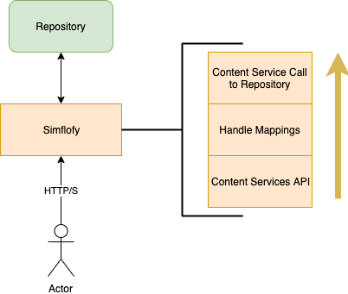
You can also add mappings or mapping groups to your Content Service Connections which will allow you to map custom parameters to properties in the destination system.
-
Add Mappings to a Content Service Connector
-
Create a mapping.
-
(Optional) Add your mappings (and other mappings) to a Mapping Group.
-
Click the edit icon for your Content Service connector.
-
In the drop-down under Mapping Type select Single Mapping or Group Mapping
-
In the drop-down under the mapping type you chose, select the Mapping or Mapping Group you want to add to this connection.
-
Save the Content Service connector.
Creating Mappings for Content Services
Content Service mappings will use the source as the parameter name for the content service call. The target field should match a field name in the destination repository. For easier use, you can leverage the schema discovery for your connectors to populate the output field names when mapping.

In the above example, the parameter name can be populated to map data to the Title field in the connected repository.
Here is an example call using the mapping above:
http://localhost:8080/3sixty-admin/repo/spo2/update?fileId=s5dba1525-44a6-45ed-a42e-4a155a3f0539&name=second_level_22The above call will update the SharePoint document by setting the Title to 'second_level_22'.
Commonly Supported Operations
Note: Capabilities
The capabilities of each Content Service Connector is limited to operations allowed by the repository. Additionally, not all methods are available for all connectors. View individual connector pages for a list of capabilities.
-
Creating content
-
Retrieving file content
-
Showing content properties
-
Listing folder items
-
Listing file versions
-
Updating file content and properties
-
Deleting files and folder
-
Showing repository capabilities
-
Retrieving the Root Folder ID
-
Managing Permissions