Trapeze trial getting started guide
Thank you for your interest in Objective Trapeze, we hope you enjoy trialling the software. This guide covers the steps to get you and your organisation started with Objective Trapeze as simply and quickly as possible.
If you are uncertain about anything or næd assistance getting started, please contact the Objective Trapeze Support Team.
Overview
Objective Trapeze is a desktop application used by council planning and building teams to measure, assess, annotate and stamp digital plans and drawings.
You can trial Objective Trapeze in your organisation by installing the desktop application for up to ten users.
Objective Trapeze users open files from your organisation's Document Management System (OMS) or from their local drive, or scan documents. After working on the file, they can then save it back to your organisation's OMS or their local drive, or output all or part of the file to print or to send as TIFF or PDF attachments via their default email application. No documents are stored in Objective Trapeze.
The general steps to getting started with Objective Trapeze are:
-
Install the Objective Trapeze application on each computer.
-
Load the trial license file in each instance of the Objective Trapeze application. The application must be able to connect to the Objective licensing server to confirm the license key.
-
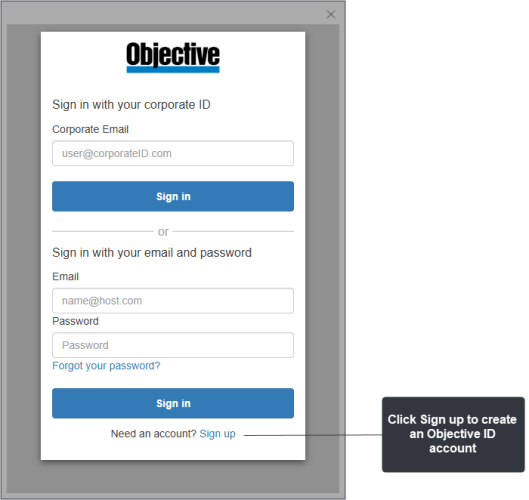
Each user signs up to create an Objective Trapeze account or you can set up a corporate identity for your organisation connected to Windows Active Directory login.
Getting started
-
We recommend saving the .tpz licence file that is attached to the trial email so that when prompted you can use the "Licence file..." button to select the licence file (rather than entering the customer, location and key values manually).
-
Download and run the latest version of the Objective Trapeze installer from the Trapeze Download Page. We recommend using the 64-bit MSI installer if you are unsure which to pick.
-
Run Objective Trapeze and sign up to create your free Objective ID account
Note: Objective Trapeze does require an Internet connection for licence validation. If you see any licence warnings or connectivity error messages when you first run the software, your organisation's network security may be blocking Trapeze from verifying the licence. Please refer to the latter section on internet connectivity for more information.