Required documents
-
Your consent details the documentation you must supply as evidence that the completed building work complies with the terms of the building consent.
-
You can upload required documents throughout your project, as you collect them. You must upload all the documentation before the final inspection on your project.
-
Your Code Compliance Certificate may not be issued if you do not provide all the required documents.
Required documents may include
-
Producer statements are evidence that the design or building work complies or will comply with the Building Code.
-
Records of work (RoWs) are a record of restricted building work (RBW) that a Licensed Building Practitioner (LBP) has carried out or supervised. All RBW must be carried out by an LBP.
-
Warranties may be required from the installer for some products, such as waterproof membranes.
-
Certificates such as the Electrical Certificate of Compliance (CoC) and gas certificates for work done by legislated trades.
-
As-built plans, such as for drainage work, to show the location, depth and connection points.
Required document list
As part of issuing your consent, the Building Consent Authority (BCA) includes a list of documents you must capture during your project and present at final inspection as evidence of compliance. The list of required documents is available from the Documents | Required area on your consent.
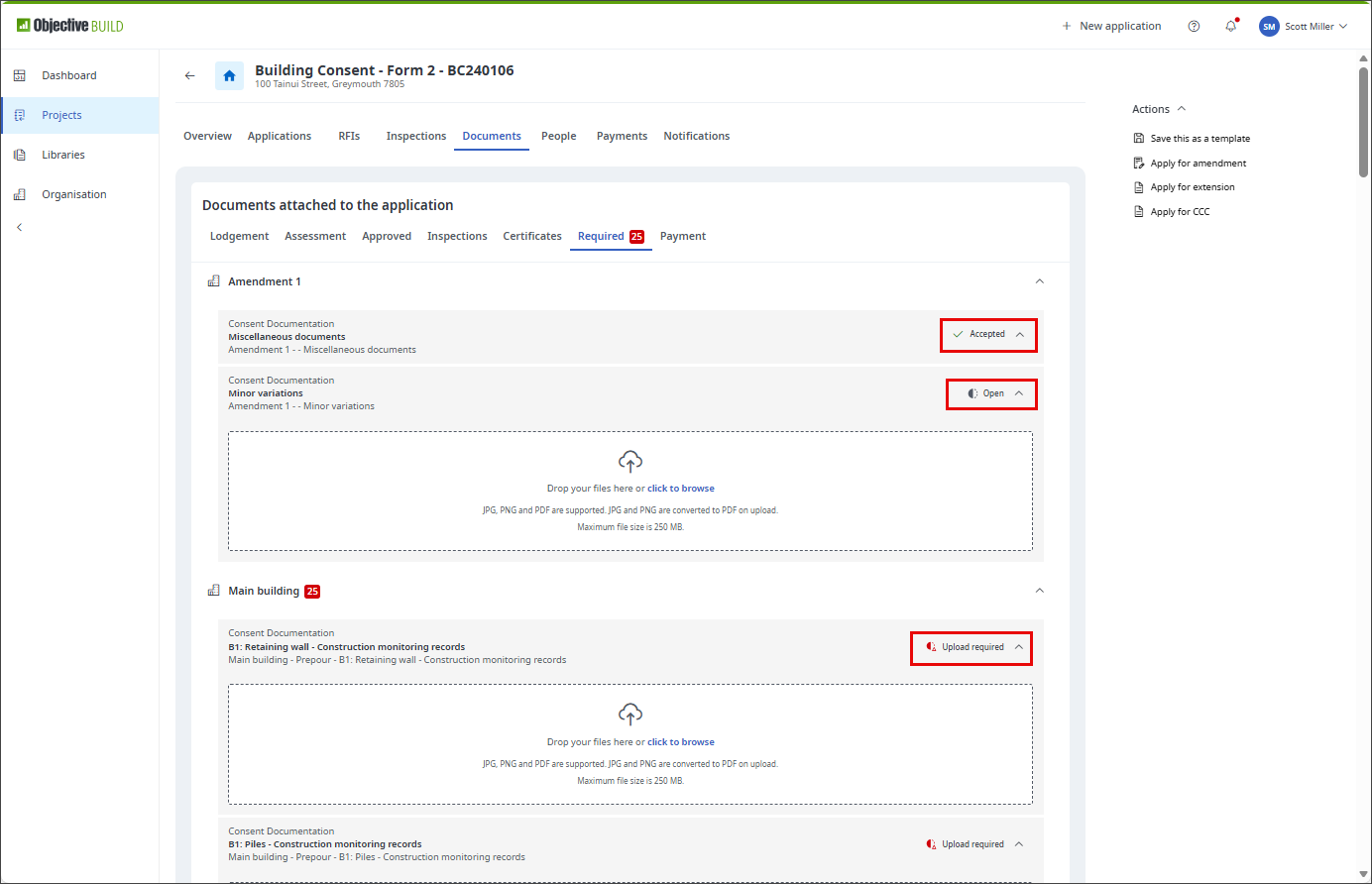
The number of outstanding required documents is shown as a red badge on the Required Documents header and against each building.
A required document category has one of these statuses:

|
You have not yet uploaded documents for this mandatory required document category |

|
You have uploaded one or more documents to a mandatory required document category or the required document category is optional, such as Miscellaneous or Minor Variation (the use of optional categories varies between BCAs) |

|
The BCA has accepted the uploaded documents as sufficient to meet the requirements and this category is closed |
Upload required documents
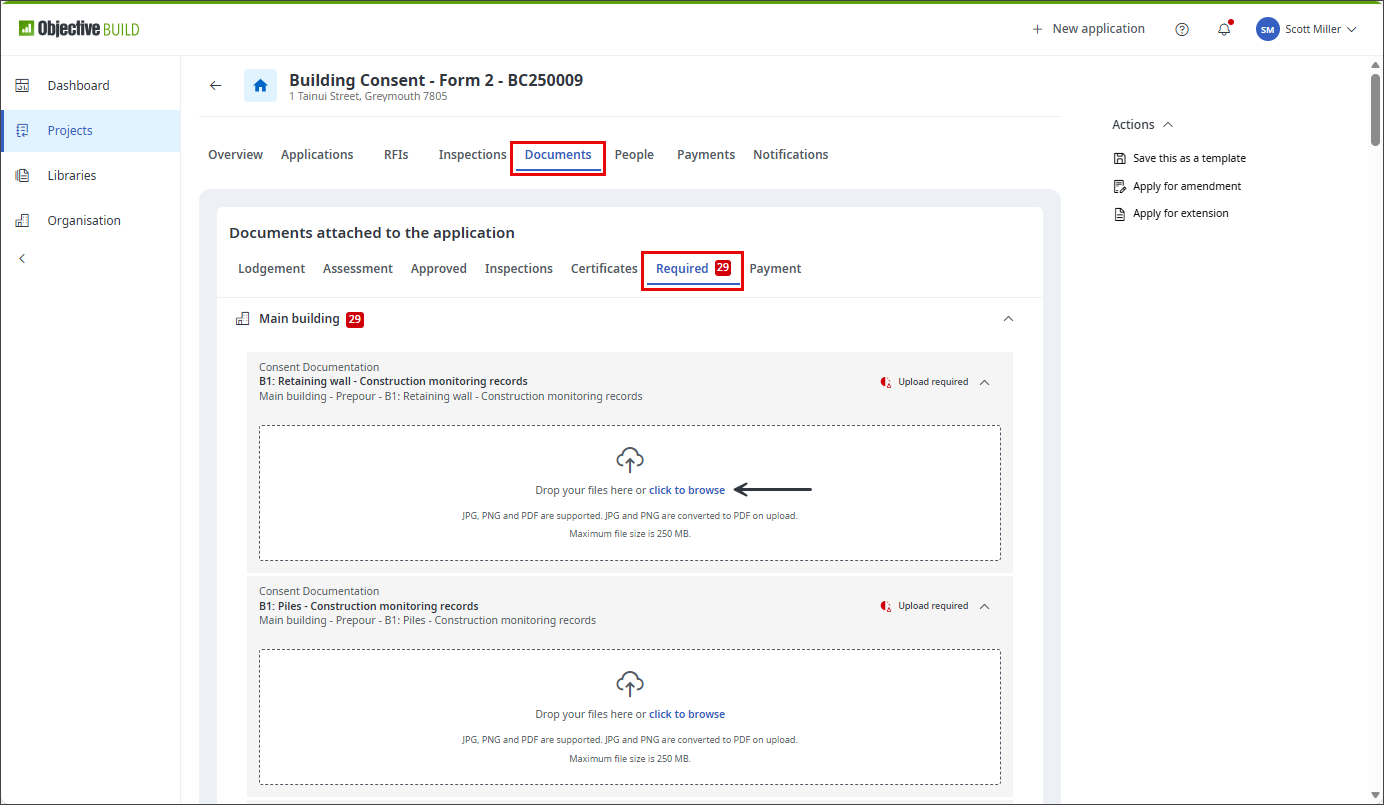
You can upload documents against a required document category by dropping files onto the upload container or selecting click to browse to open a file explorer. Objective Build pushes uploaded documents to the BCA's system and marks the uploaded document as Received.
You can preview and download uploaded documents by selecting the relevant option from the ... more options menu against the document.
-
Navigate to the Projects screen
-
Search for the application by entering the search ID, address or description I
-
Select the Documents tab
-
Click on Required tab
-
Select click to browse
-
Navigate to the document location and click open
Note: You can attach a single document only when the BCA system does not yet support multiple documents.
-
Document status is Received until the document is reviewed by the BCA.
Withdraw required documents
While the document is marked as Received, you can withdraw it by selecting ... | Withdraw against the uploaded document. The withdrawn document remains in the document list. You cannot withdraw a document that has been accepted or rejected.
Withdraw a document to signal to the BCA to ignore the document, usually when you want to upload a different document. Withdrawing updates the status of the document but it does not delete it.
-
Navigate to the Projects screen
-
Search for the application by entering the search ID, address or description
-
Select the Documents tab
-
Click on Required tab
-
Click on
 for the document you want to withdraw and select
  Withdraw
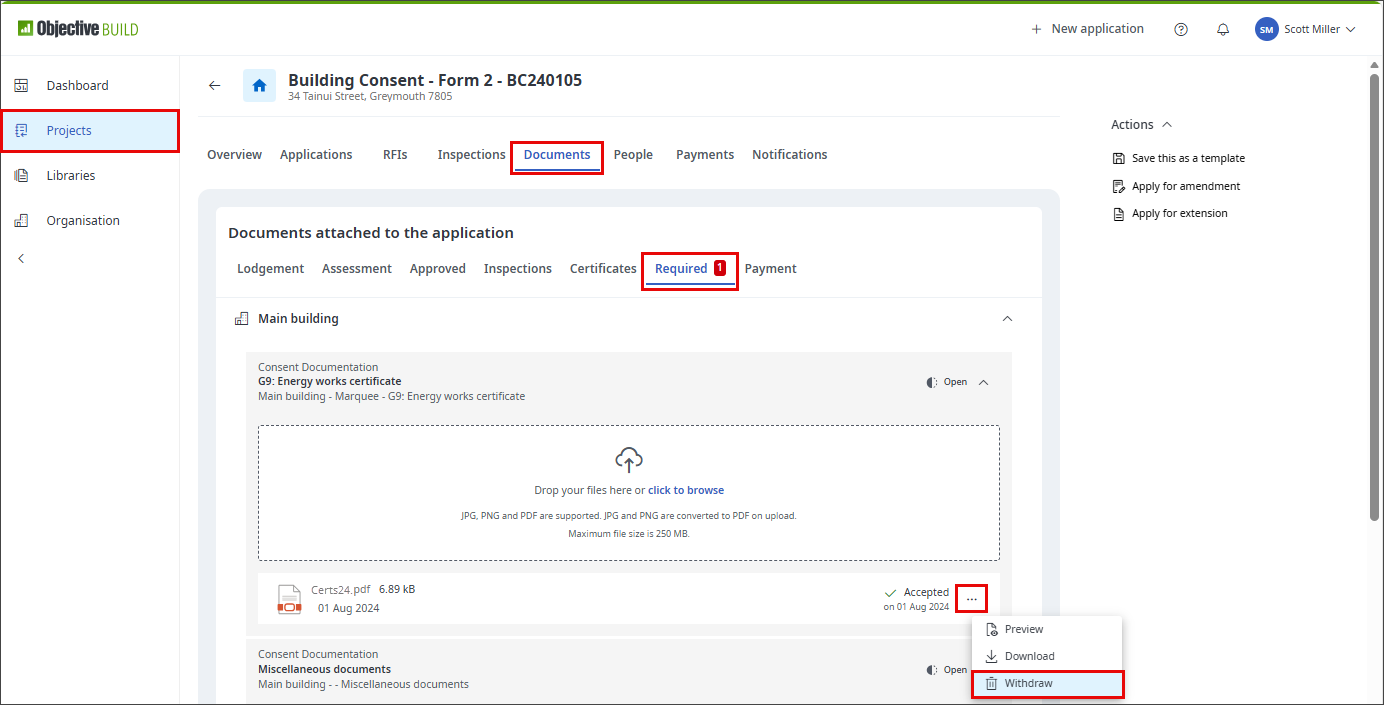
Note: The document status is Withdrawn and the system updates the document in the BCA's system. The uploaded document is not deleted. If the BCA subsequently processes the document, the system updates the document status from Withdrawn to Accepted or Rejected.
Accepted or rejected documents
A BCA may reject a document you have uploaded for a required document, for example if it is incorrect or incomplete. The document status is Rejected.
BCA staff may provide a reason for the rejection, in which case a Reason option is shown below the document name. Select Reason and the system displays the full text provided by the BCA.
Accepted required documents
When the BCA has received all the expected documentation for a required document, they will accept and close the required document group. The Upload required option is replaced by an Accepted status.
When the required document group is accepted, you can preview and download uploaded documents, view their status and rejection reasons. You cannot withdraw uploaded documents or upload new documents.
Documentation from your electrician
Documentation from your builder and designer
Supported file formats and sizes
You can upload Adobe Portable Document Format (PDF) files to Objective Build. You can upload JPG and PNG image files and the system converts these to PDF. PDFs are accepted by all local authorities.
You can load a file up to 250MB in size.
If a file is larger than 250 MB and you have the option to output the PDF again from the source, for example if you are outputting a PDF from an architectural drawing tool, use the inbuilt options in that tool to optimise the PDF for lower size while still retaining high quality.
If you do not have access to the original tool, you may be able to compress the PDF. Always select the compression option that retains the highest quality when compressing architectural plans or drawings. Compression works by simplifying the data, but in some files the data is already simplified and compression has little or no effect.
If a single file exceeds 250 MB and you are loading files to an application or to required documents, you could split the file by outputting a range of pages at a time, to produce multiple files each smaller than 250 MB. You can then upload multiple files to an application and to required documents on a consent. (Note: you can submit a single PDF file only on RFI responses.)