File Format Converter
This task will convert files of one format to another format during migration. Document processing often requires transforming documents from one format to another. For example, for long term preservation/archival, PDF/A is a desired format. All documents may not be in that format – and doing such conversion at scale is often hard, and the quality may at times be compromised. With Objective’s Universal Document Converter, any document can be converted into desired format without loss of quality. It will also support complex processing when a document cannot be directly converted into another format by converting it into a transient format before converting it into the desired format.
Features
-
Ability to convert any document format to desired format
-
Support intermediary conversion formats if direct conversion is not possible
-
Ensure great quality when converting document from one format to another
-
Ensure no loss during text extraction from converted format
-
Bulk conversion of document formats at scale
Supported Converters
|
Converter |
Source ext. |
Target ext. |
|---|---|---|
|
Cad |
DWG, DGN, DXF, DWF, DWT, SVG |
PDF, PNG, BMP, TIFF, JPEG, JPG, GIF, DWG, DWF, DXF, SVG |
|
Cells |
CSV, XLS, XLSX, ODS, XLSB, JSON, XLT, XLTX, XLSM, XLTM |
CSV, XLS, XLSX, XLSM, XLTX, XLTM, XLAM, TSV, TAB_DELIMITED, HTML, M_HTML, ODS, XLSB, PDF, XPS, TIFF, SVG, DIF, XLT, XML, MD, MARKDOWN, PPTX, DOCX, EMF, JPG, PNG, BMP, GIF, JSON, JPEG |
|
Diagram |
VSD, VSDX, VSS, VSSX, VTX, VDX, VDW, VST, VSTX, VSX |
BMP, JPEG, JPG, TIFF, EMF, SVG, PNG, PDF, HTML, XPS, XAML |
|
|
MSG, EML, EMLX, VCF, ICS |
HTML, MHT |
|
Imaging |
PNG, JPEG, BMP, TIFF, BIGTIFF, GIF, DICOM, SVG, ICO |
PDF, JPEG, BMP, PNG, TIFF, GIF, SVG, ICO |
|
|
PDF, PDFXML |
PDF, DOC, DOCX, XPS, XML, TEX, SVG, XLSX, MOBI, EPUB, PPTX, APS, PS, EPS, PDFXML, HTML, PDF_A_1A, PDF_A_1B, PDF_A_2A, PDF_A_2B, PDF_A_3A |
|
Slides |
PPT, PPS, PPTX, PPSX, ODP, POTX, PPTM, PPSM, POTM, POT |
PPT, PDF, XPS, PPTX, PPSX, ODP, PPTM, PPSM, POTX, POTM, HTML, PPS, POT, GIF, HTML5, MD |
|
Words |
DOC, DOCX, DOCM, DOT, DOTX, DOTM, RTF, HTML, MHTML, ODT, XML, TXT |
DOC, DOT, DOCX, DOCM, DOTX, DOTM, RTF, PDF, XPS, SVG, HTML, MHTML, ODT, TXT, TEXT, MD, MARKDOWN, XLSX, TIFF, PNG, BMP, EMF, GIF, JPEG, JPG |
Configuration
To use the File Format Converter task, go to the Task tab in your job. Select the task from the drop down and click the plus circle to configure the task. Click done after making any changes to save.
Conversion Extension Settings
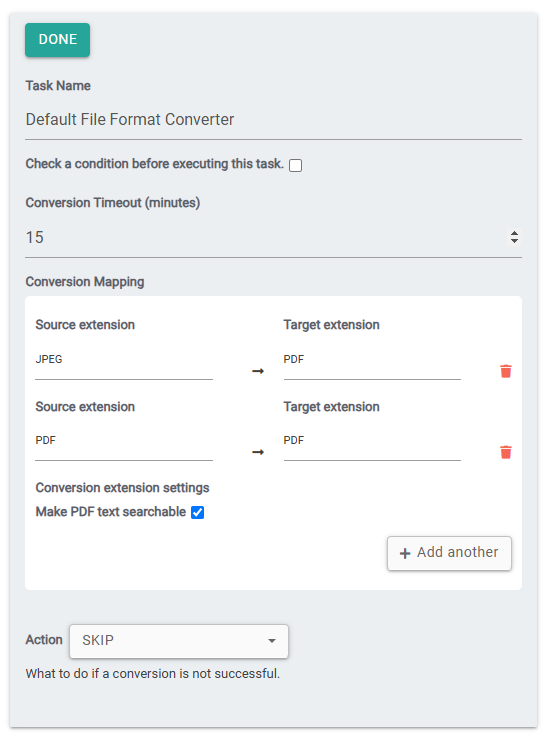
A new Conversion Extension Settings section has been introduced for PDF to PDF conversions. This section provides additional OCR-related options to control how scanned documents are processed and converted into searchable PDFs.
|
Setting |
Description |
Default Value |
|---|---|---|
|
Make PDF Text Searchable |
Applies OCR to the document so that the text content becomes searchable within the generated PDF. |
Enabled |
|
OCR Engine |
Specifies the OCR engine used for text recognition. Users can choose between Default OCR, Tesseract OCR and Aspose OCR. See OCR Engine Options. |
Default OCR |
|
OCR Language |
Specifies the language used during text recognition. This option is available only when Aspose OCR is selected. See OCR Language. |
English |
|
PDF Optimization Mode |
Determines the balance between output quality and file size. This option is available only when Aspose OCR is selected. See PDF Optimization Mode. |
Balanced |
|
Detect Area Mode |
Controls how text regions are identified within the document. The Universal mode automatically detects and recognizes text blocks across a wide variety of document layouts and image types. This option is available only when Aspose OCR is selected. See Detect Area Mode. |
Universal |
|
Number of Threads |
Specifies the number of threads used for OCR processing. Increasing the number of threads can improve processing performance by enabling parallel execution of OCR tasks. This option is available only when Aspose OCR is selected. |
User-defined |
OCR Engine Options
|
Option |
Description |
|---|---|
|
Default OCR |
Automatically selects between Tesseract OCR and Aspose OCR at runtime based on document characteristics. The selection is based on factors such as the presence of text, number of images per page, and document page count. When the document page count equals or exceeds the configured threshold, Tesseract OCR is used. The page count threshold can be configured using the OCR_DEFAULT_PAGE_THRESHOLD environment variable (default: 80 pages). See OCR Configuration for configuration details. |
|
Tesseract OCR |
Open-source OCR engine suitable for a wide range of document types. When selected, no additional OCR configuration options are available. |
|
Aspose OCR |
Commercial OCR engine with advanced configuration options. When selected, additional settings become available including OCR Language, PDF Optimization Mode, Detect Area Mode and Number of Threads. |
OCR Language
|
Option |
Description |
|---|---|
|
English |
Uses the English language model and dictionary for improved recognition accuracy. |
|
Auto |
Automatically determines the language of the document. |
|
Universal |
Uses a language-independent recognition model that focuses on character shapes rather than dictionaries. |
|
Multilanguage |
Uses multiple language models simultaneously. |
PDF Optimization Mode
|
Option |
Description |
|---|---|
|
MAXIMUM_QUALITY |
Preserves the highest image quality while applying minimal compression. |
|
HIGH_QUALITY |
Provides high image quality with moderate compression. |
|
BALANCED |
Balances image quality and file size. |
|
AGGRESSIVE |
Applies strong compression to minimize PDF size. |
Detect Area Mode
|
Option |
Description |
|---|---|
|
UNIVERSAL |
Detects and reconstructs text regions in complex layouts. |
|
MULTICOLUMN |
Handles text arranged in multiple columns. |
|
TABLE |
Detects tables and preserves their structure. |
|
CURVED_TEXT |
Corrects curved or warped text. |
|
LEAN |
Handles skewed or tilted text. |
|
FORMULA |
Optimized for mathematical symbols and equations. |
Condition check
It will execute the task when the condition's result is 'true', 't', 'on', '1', or 'yes' (case-insensitive), or run on all conditions if left empty. This condition is evaluated for each document, determining whether the task should be executed based on the specified values.
Example: If I only want to run this task for PDF documents I would use the expression: equals('#{rd.mimetype}',"application/pdf")
Conversion Timeout
Enter the number of minutes you want 3Sixty to wait before taking action on a file that cannot be converted.
Conversion Mapping
Select the file formats you want to convert to another format. You can either search for the file types or scroll down to select them from the list.
Conversion Mappings can be re-ordered so that users can ensure that files are converted in the desired order.
Note: Note: Certain files can only be converted to certain file formats. For example EML and EMLX files can only be converted to HTML or MHT. And password protected files cannot be converted.
-
Source Extension: Select the file type you would like to convert from the drop down.
-
Target Extension: Select the file type you would like to convert the files to. Only the file types the source target can be converted to will be listed.
-
Add Another: Click this button to add another file type that you would like converted.
Action
Conversions may fail if the document is password protected or has restricted access. The action drop down is where you will chose what 3Sixty should do if a document fails the conversion.
-
Skip: Skip the file and continue migrating the job
-
Fail: Fail the job and stop migration
Examples
Example 1
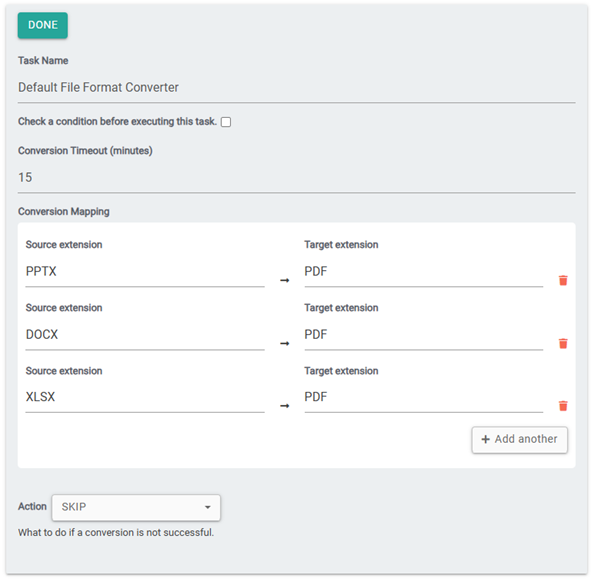
You can add several document types and have them all be converted to a file type that the destination repository will allow during migration.
For example, we can convert all Microsoft office documents to PDF.
Example 2
Users can also use this task to convert images into a searchable pdf document. First convert the image to PDF then from PDF to PDF. And check the box to make PDF text searchable.
*For Linux and Mac: To convert PDF to searchable text users will need to have Tesseract installed.